Send an Encrypted Post
🔒 Encrypted Post: The Mask Network team uses encryption technology to encrypt posts. Only users who also use the Mask Network plugin can decrypt them.
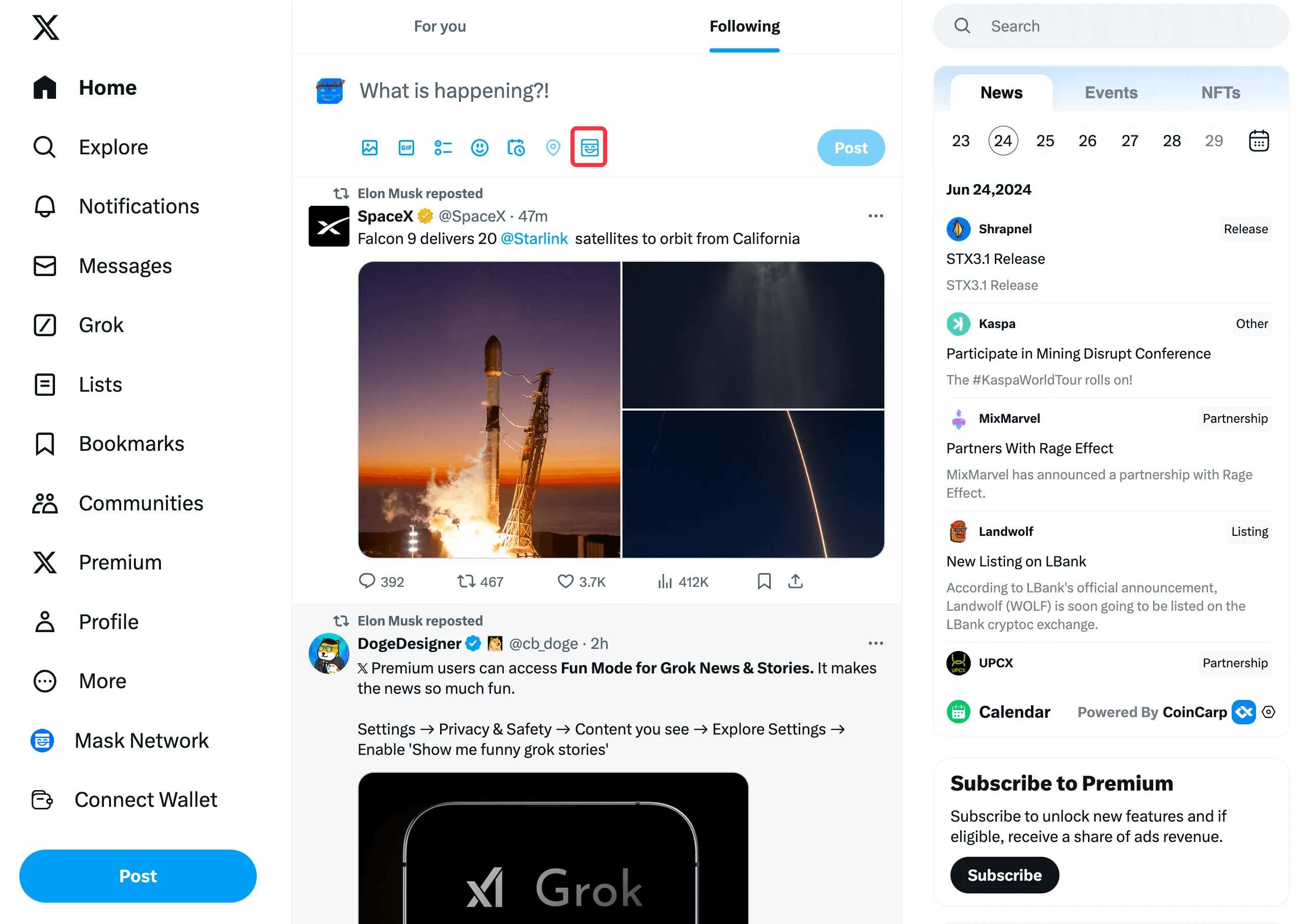
Click the Mask icon.
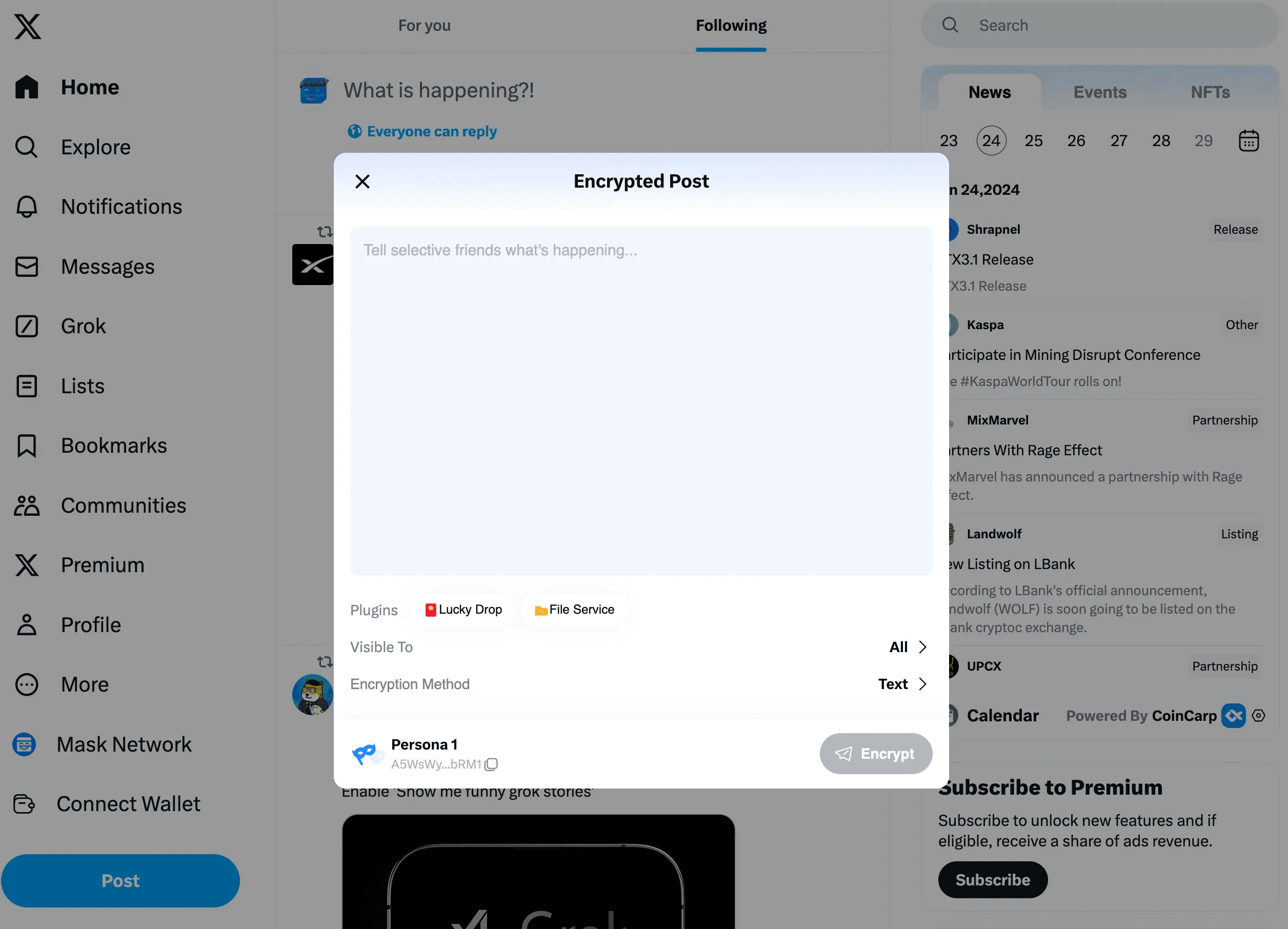
Edit your encrypted post here.
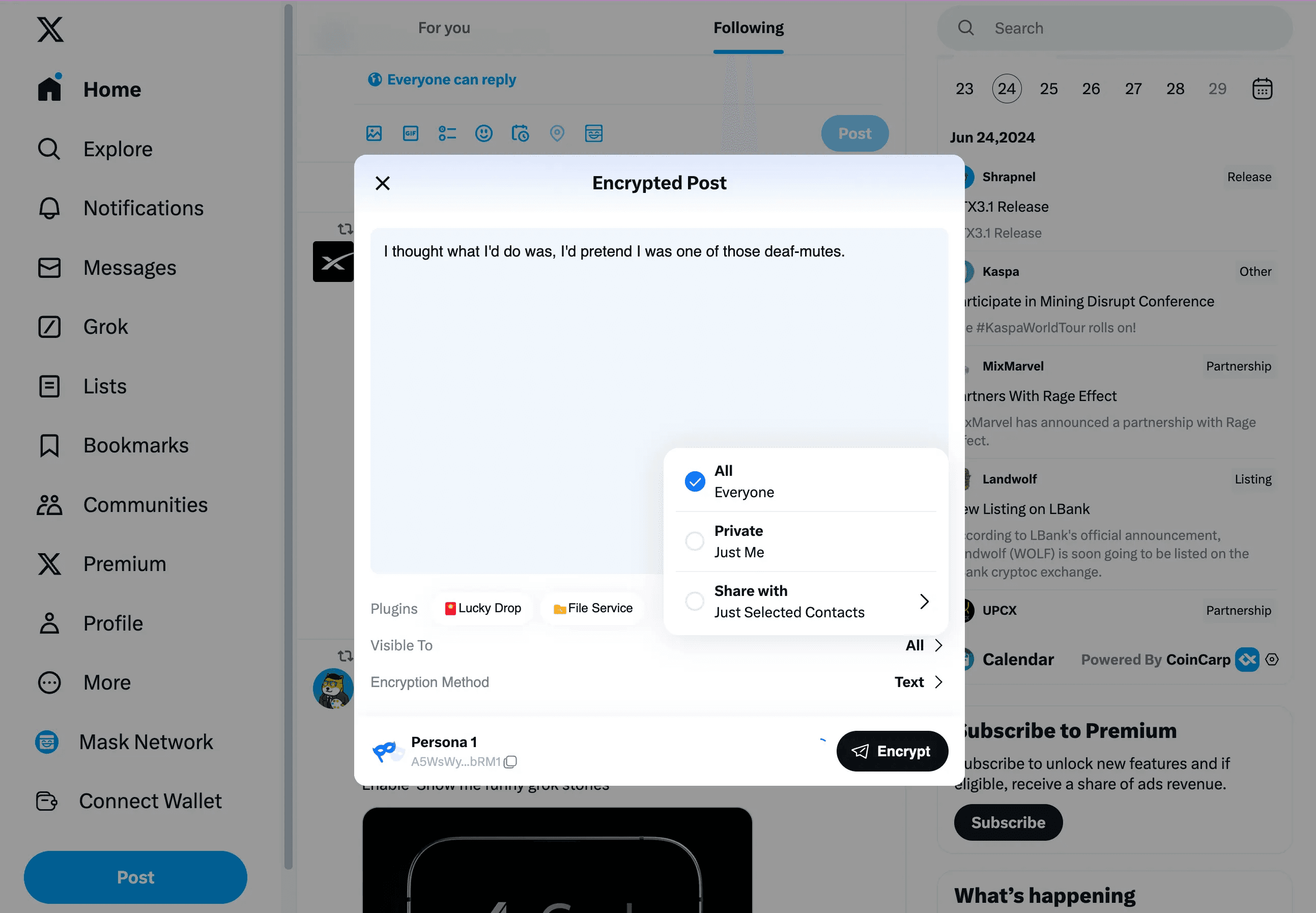
You can set the visibility range of the post.
You can also choose the encryption method.
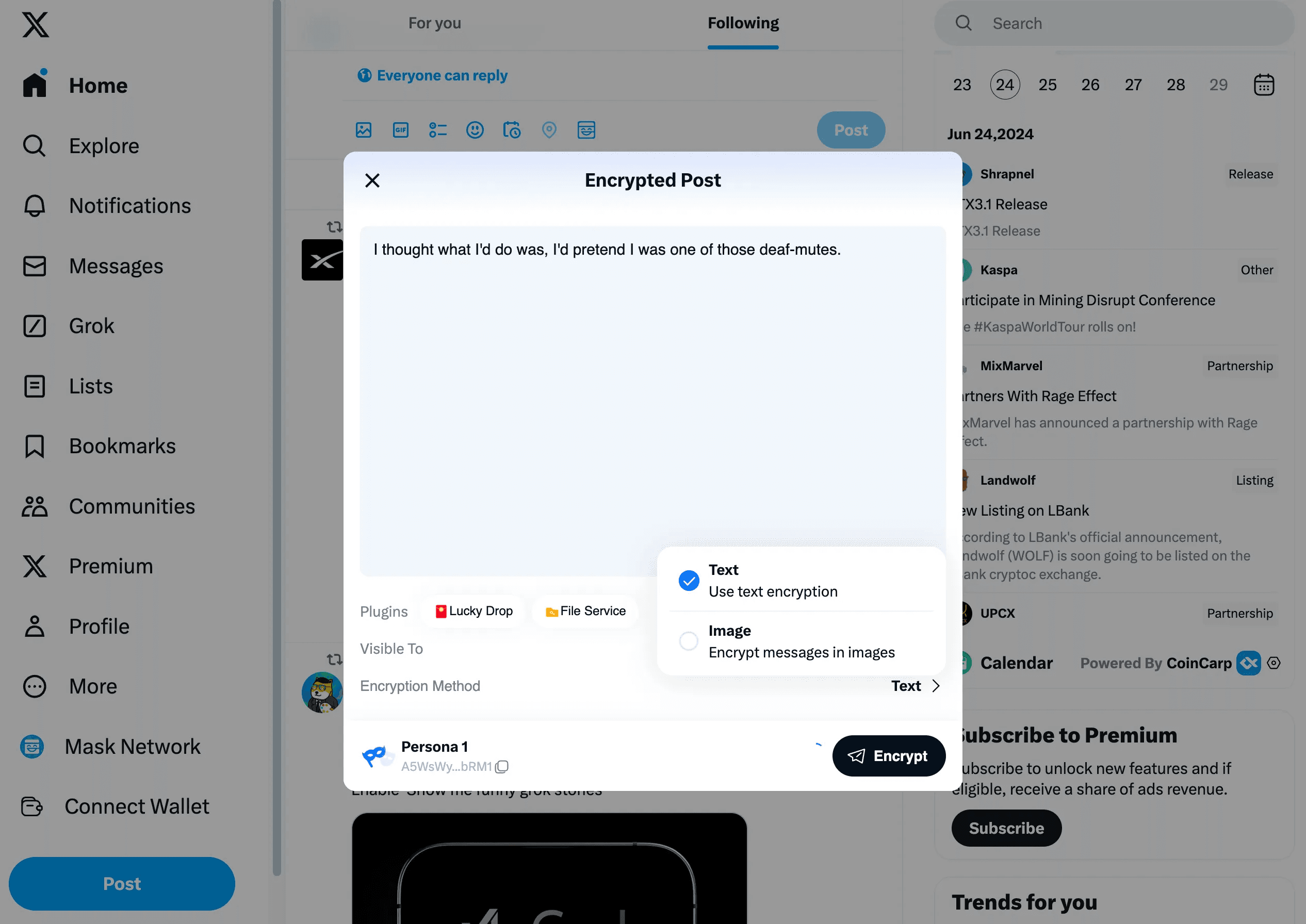
After editing, go to the post preview. Once done, click "Post".
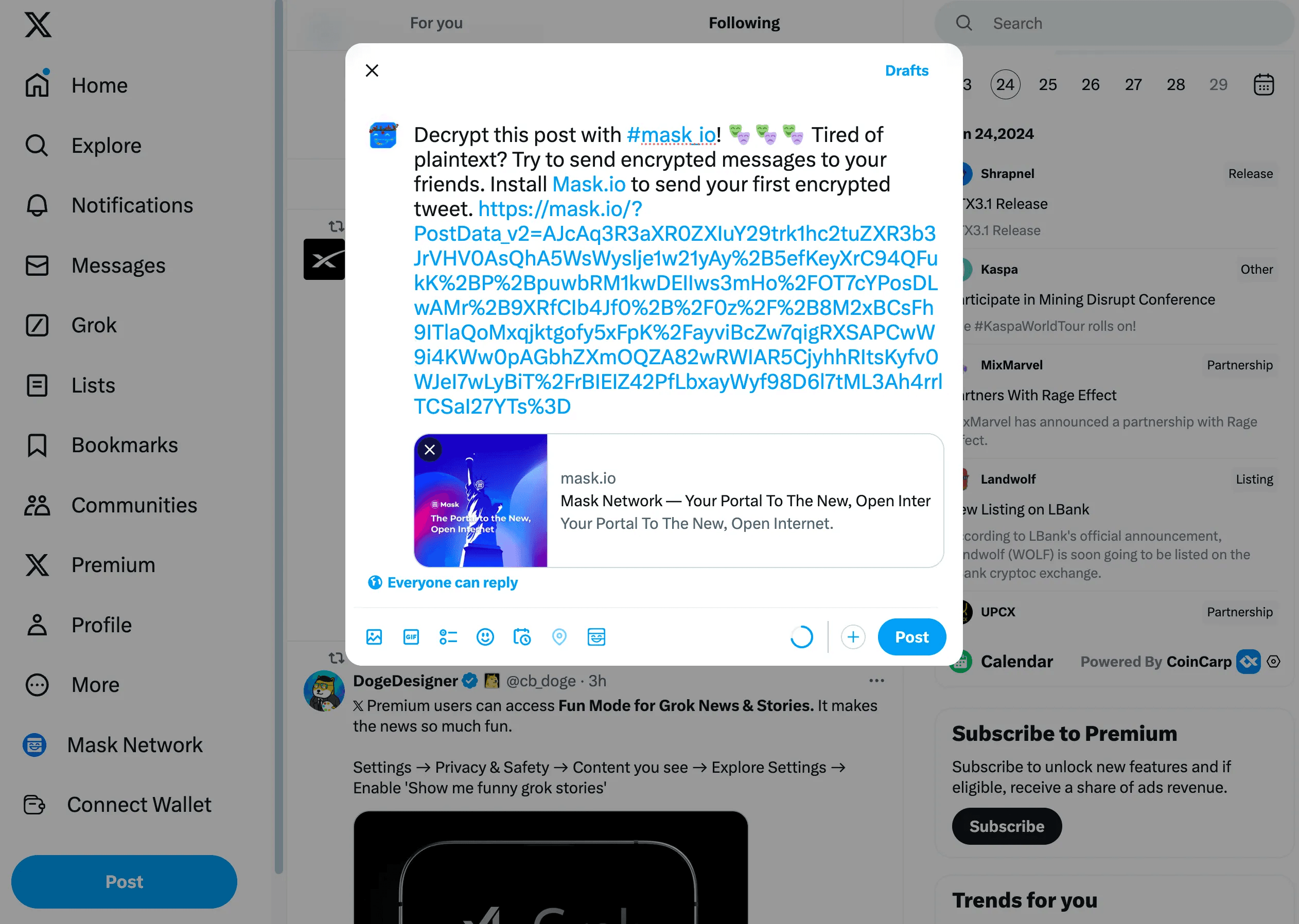
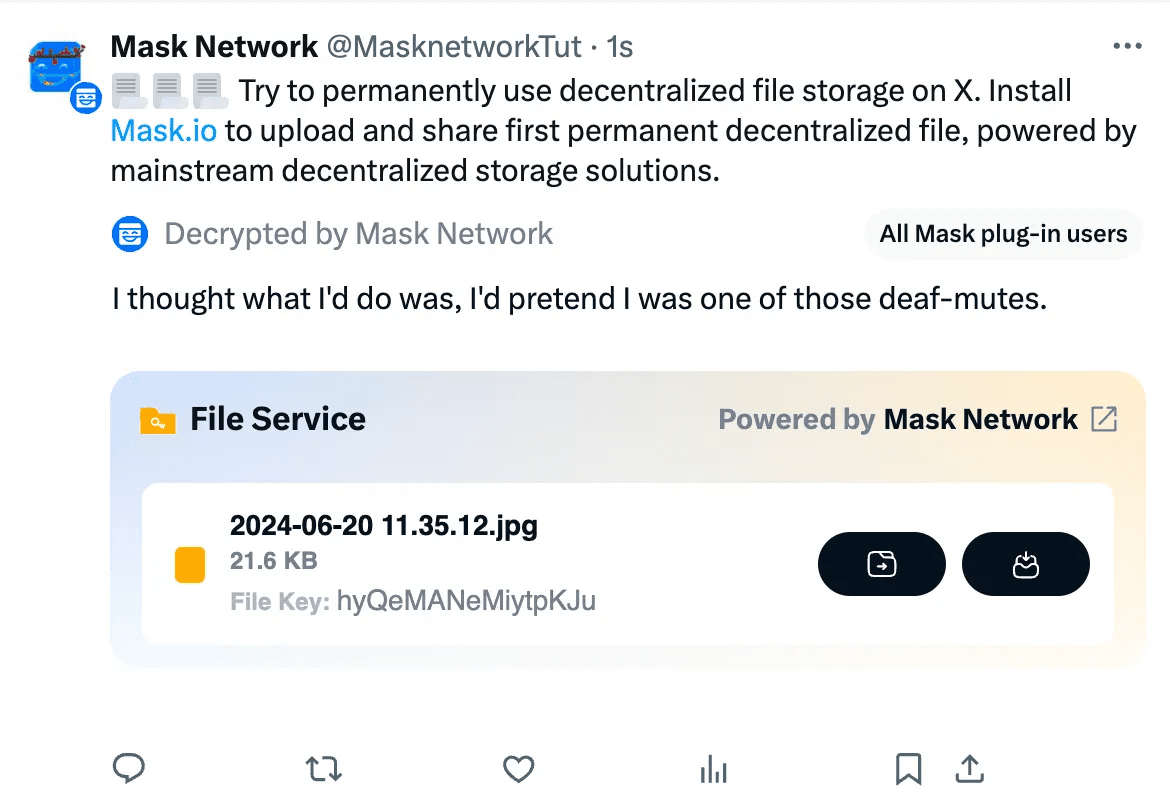
Here’s your encrypted post. Decryption conditions: Mask plug-in users within the visibility range.
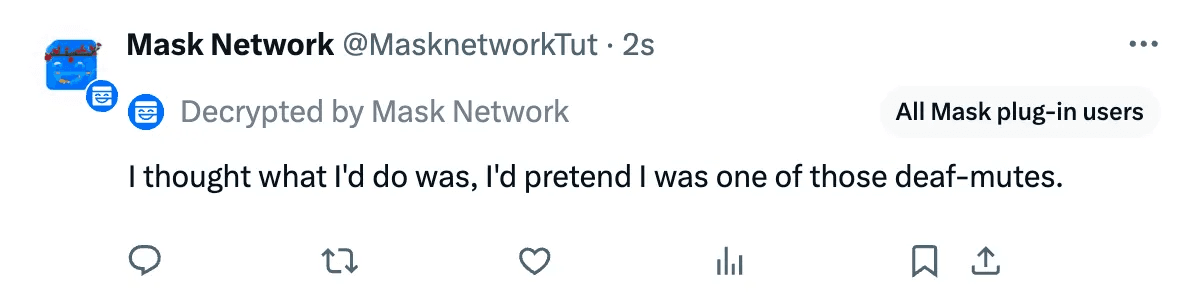
If the recipient does not have decryption permissions, they will not be able to see the contents of the encrypted post.

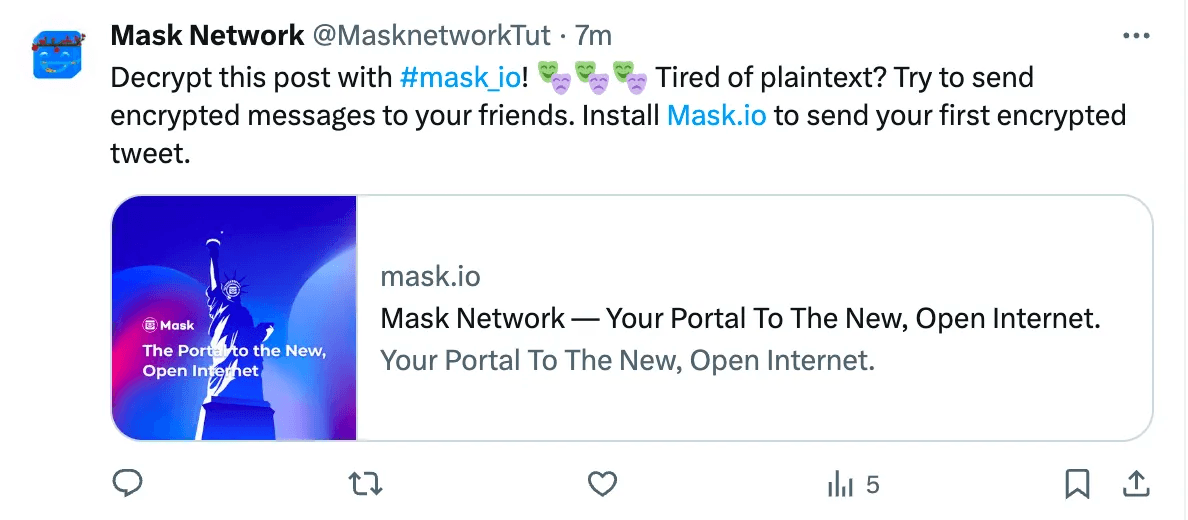
If the recipient has not yet used the Mask plug-in, they will see:
You can even add a lucky draw or an encrypted file!
Add a Lucky Drop
If you want to add a lucky drop to your encrypted post, click "Lucky Drop" in Plugins.
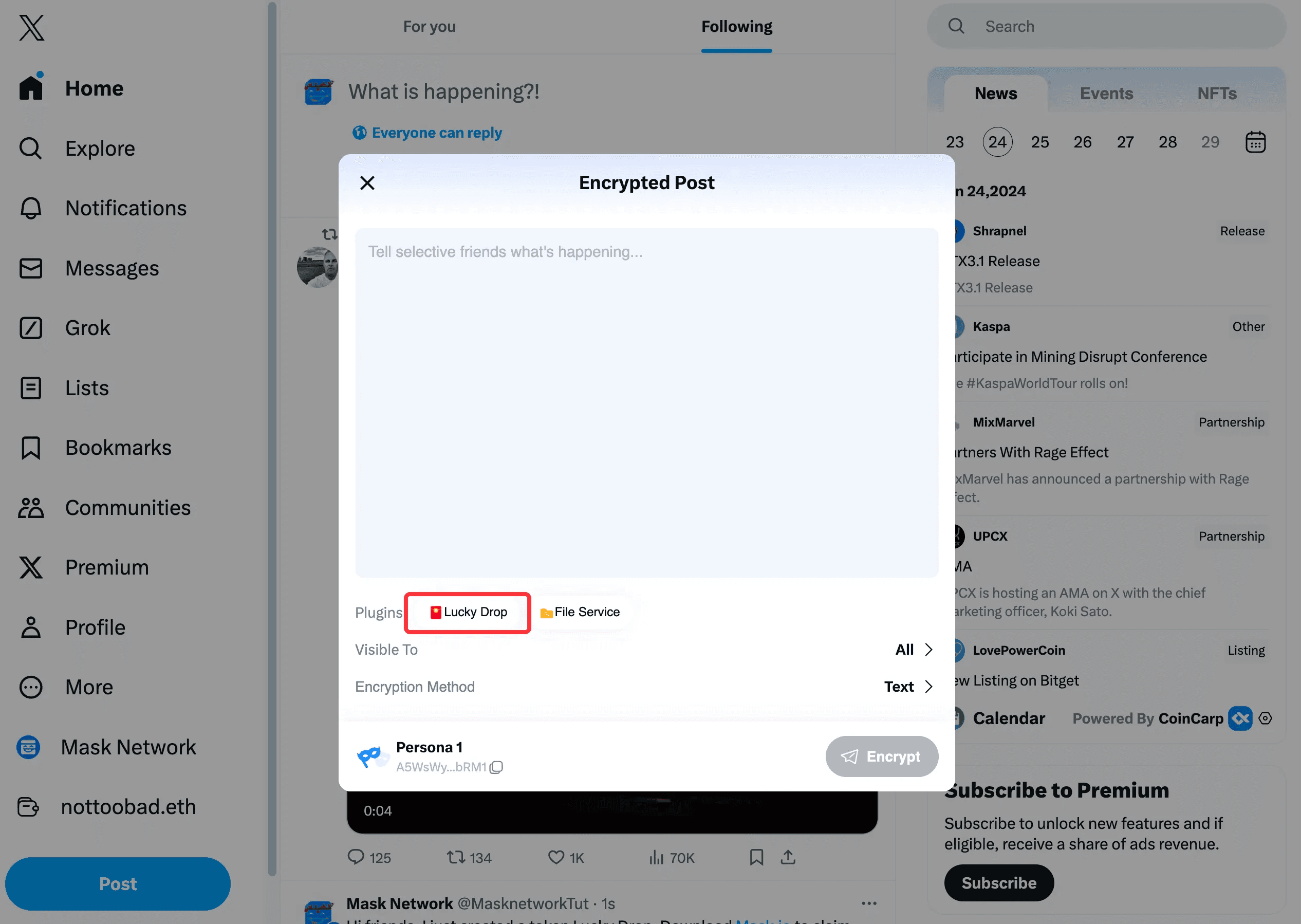
First, you need to create a lucky drop. How to send a lucky drop
Once the lucky drop is created, it will be automatically added to the post.
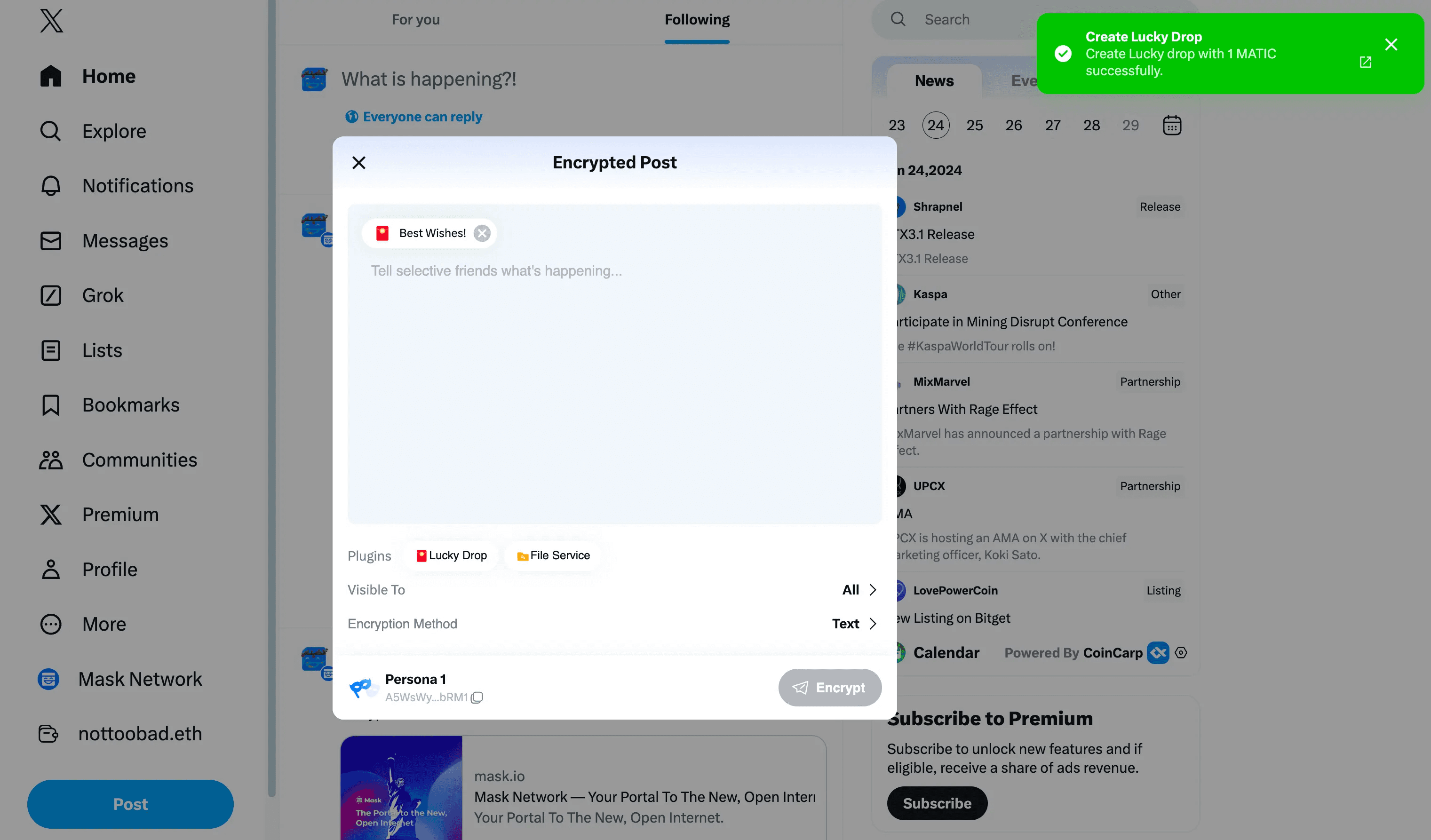
Preview the encrypted post with the lucky drop.
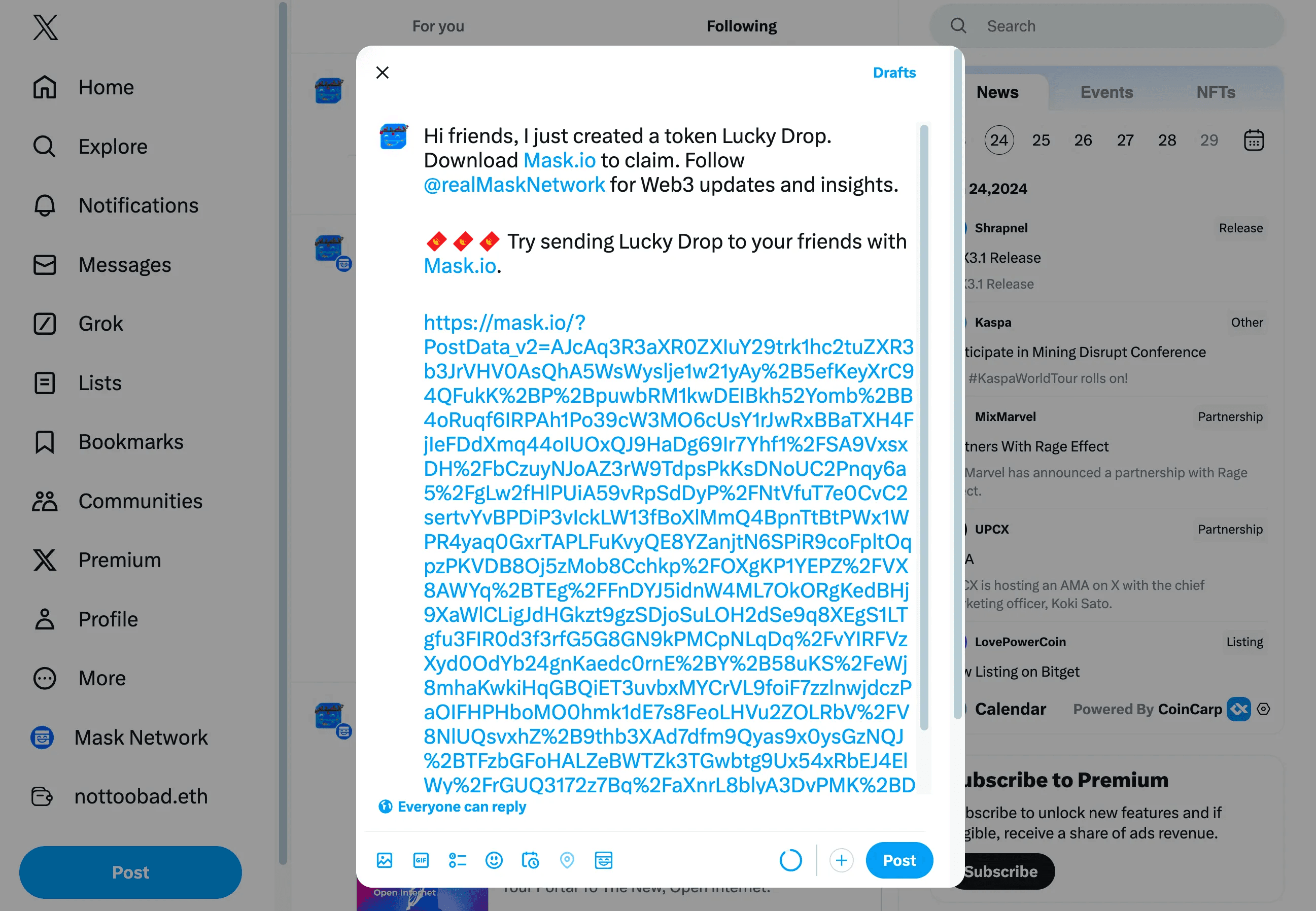
You have successfully posted an encrypted post with a lucky drop.

Add an Encrypted File
If you want to add a picture or file to your encrypted post, click "File Service" in Plugins.
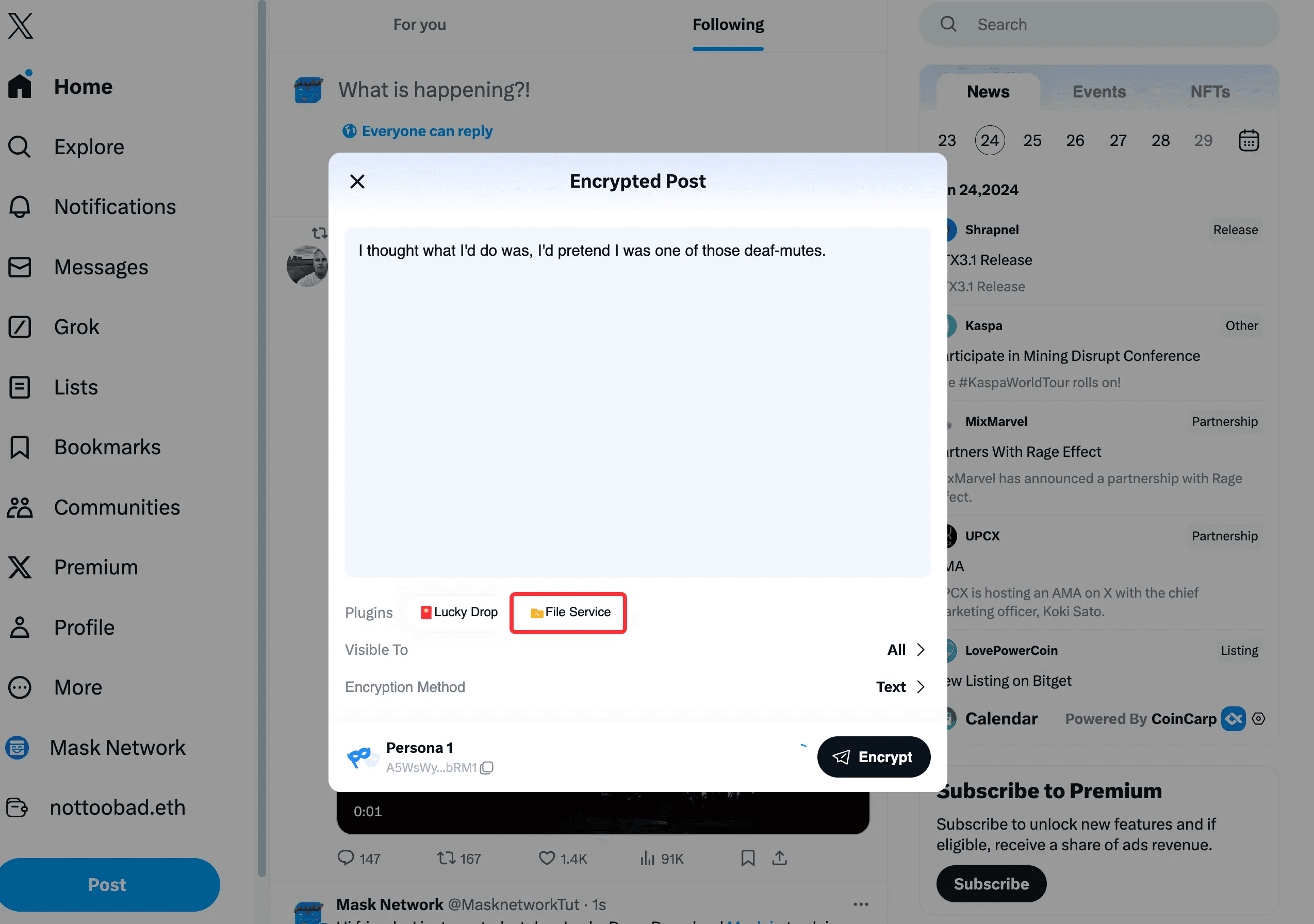
Select the file you want to upload and click Confirm.
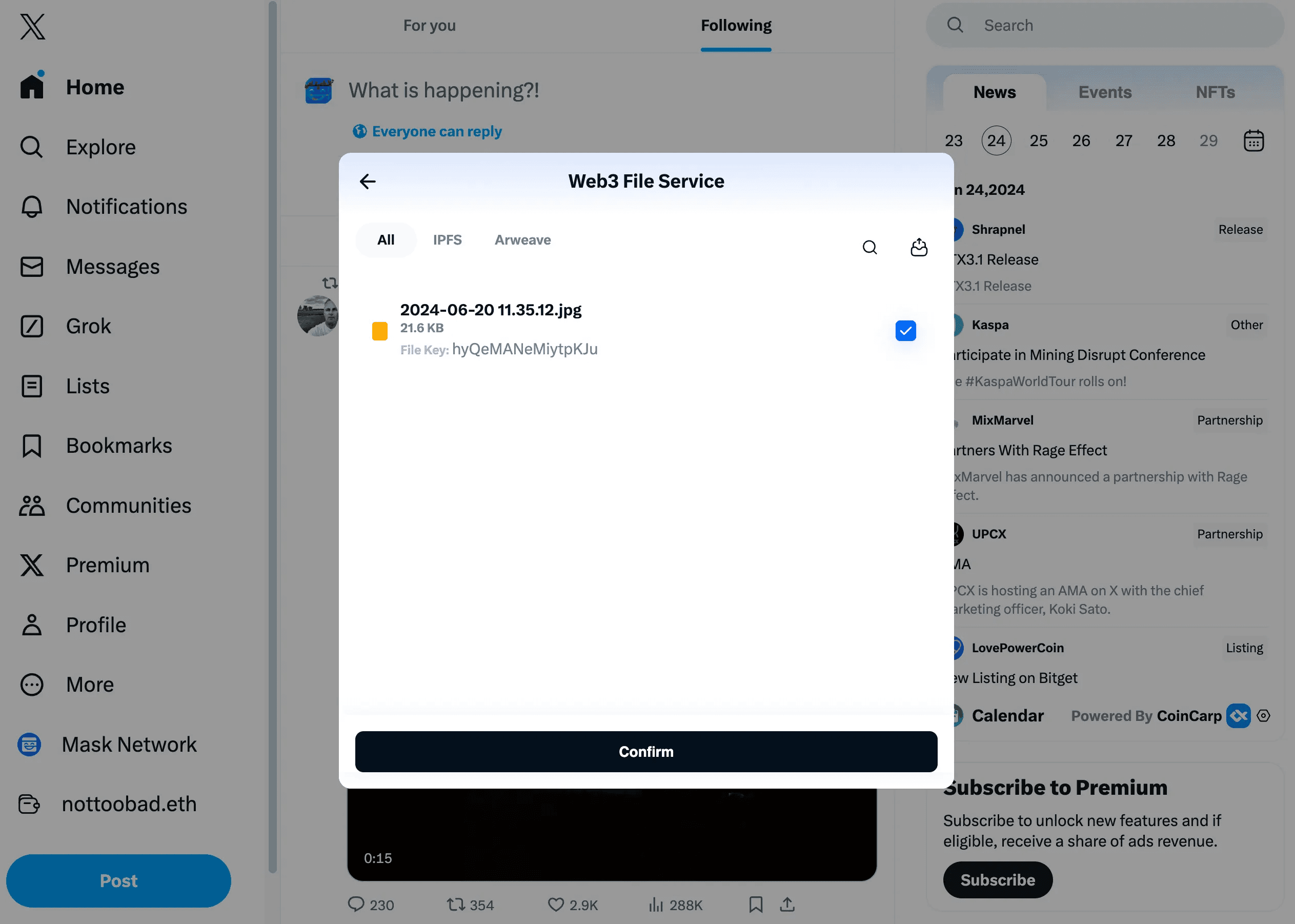
The file is now added to your encrypted post.
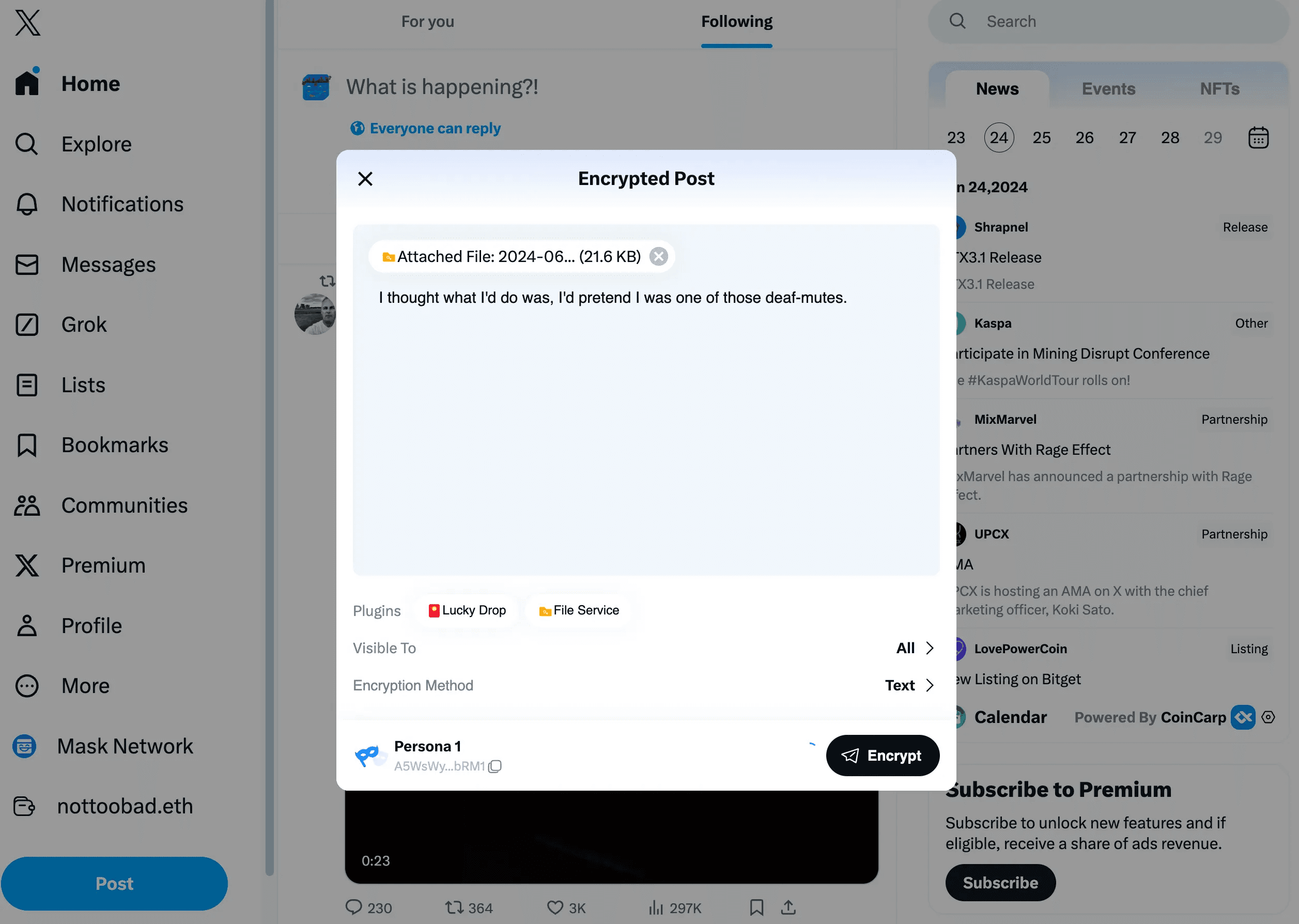
Preview it.
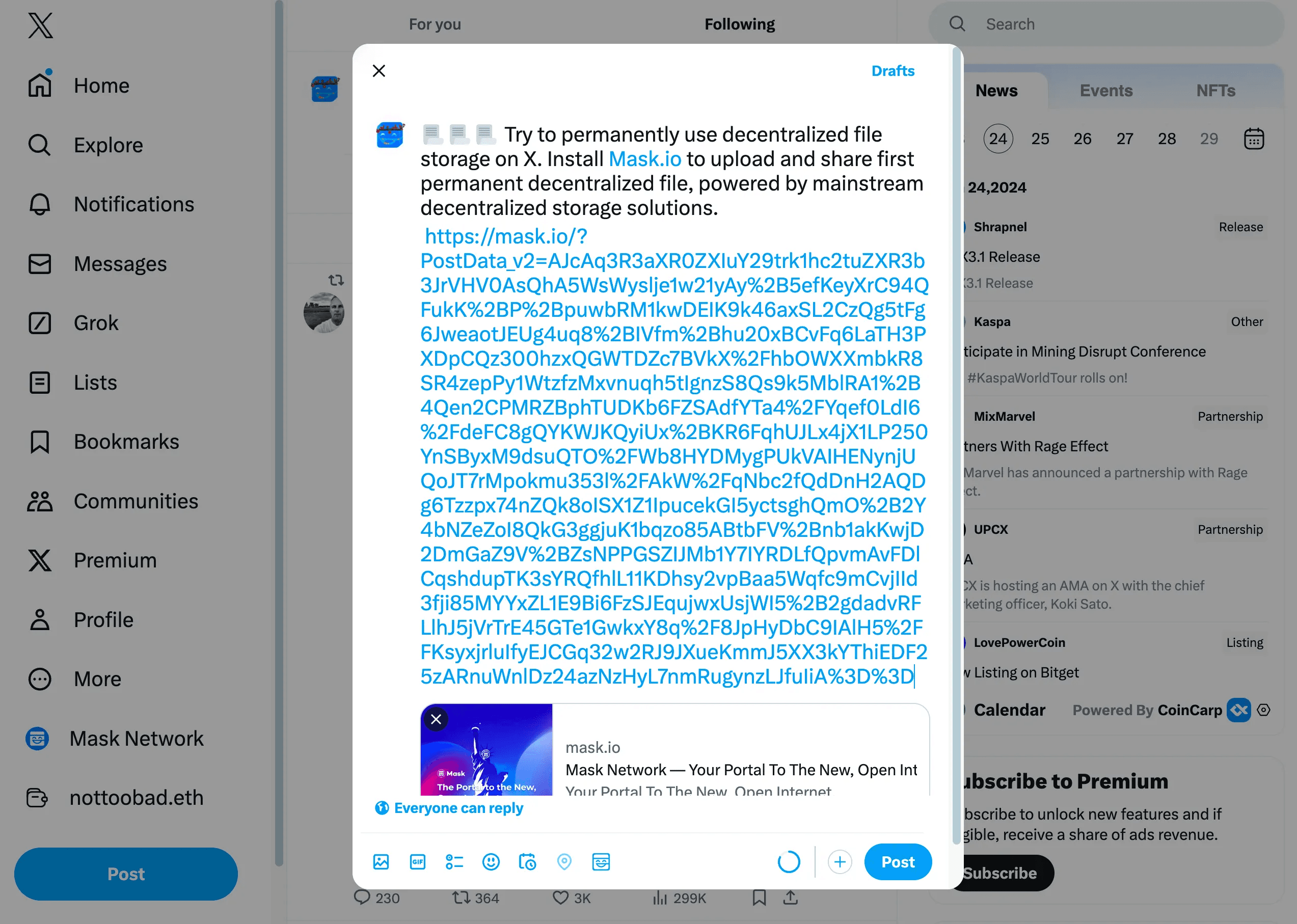
You have successfully posted an encrypted post with a file.